Each track in an ASME conference is typically broken up into a series of sessions. The track organizer oversees all the sessions within their track, but each individual session also has one or more session organizers.
Before going into ASME specifics, it would benefit the reader to go through the online help guide for session management in OpenWater here: https://help.getopenwater.com/en/collections/59209-build-and-schedule-conference-sessions
Session Configuration
Under Sessions > Session Configuration, there are few items to make sure that are set before adding sessions to OpenWater.
Session Types
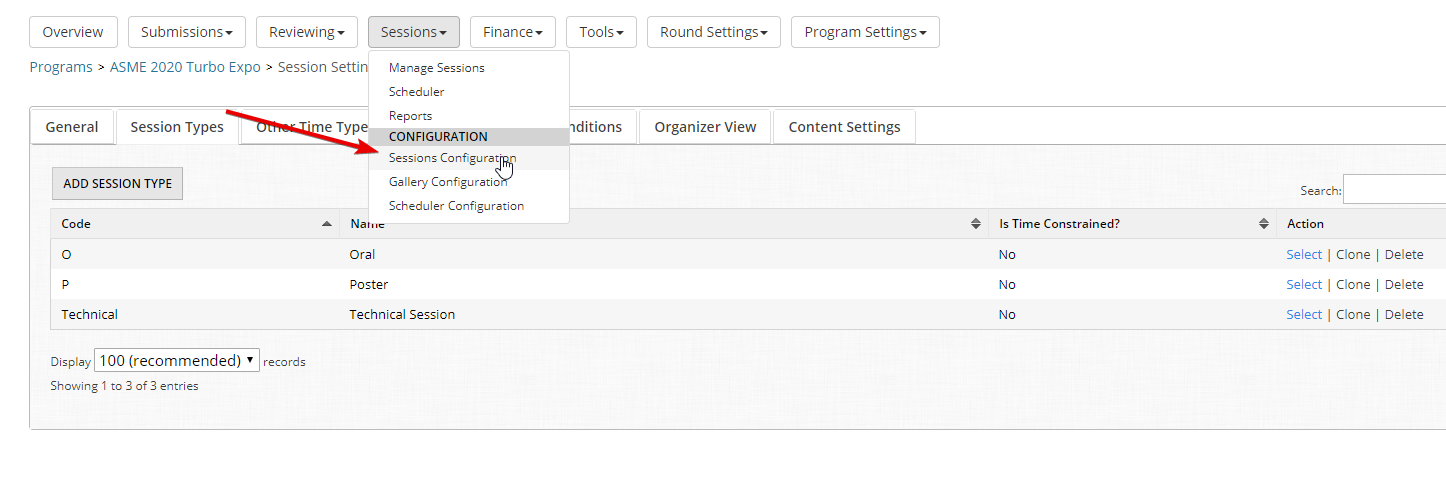
ASME staff seems to have one time: Technical Session. Oral and Poster are ignored and everything is just listed as a Technical Session, which is set as a Not Time Constrained session.
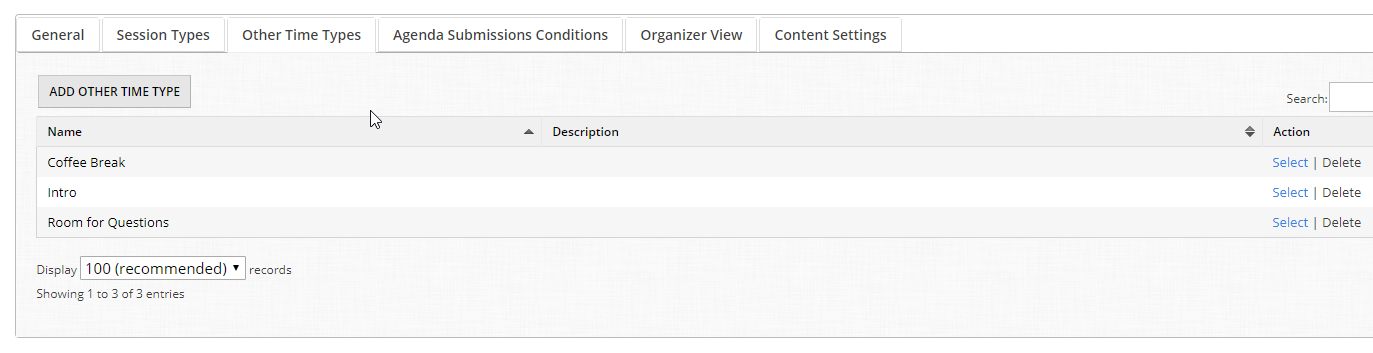
Other Time Types
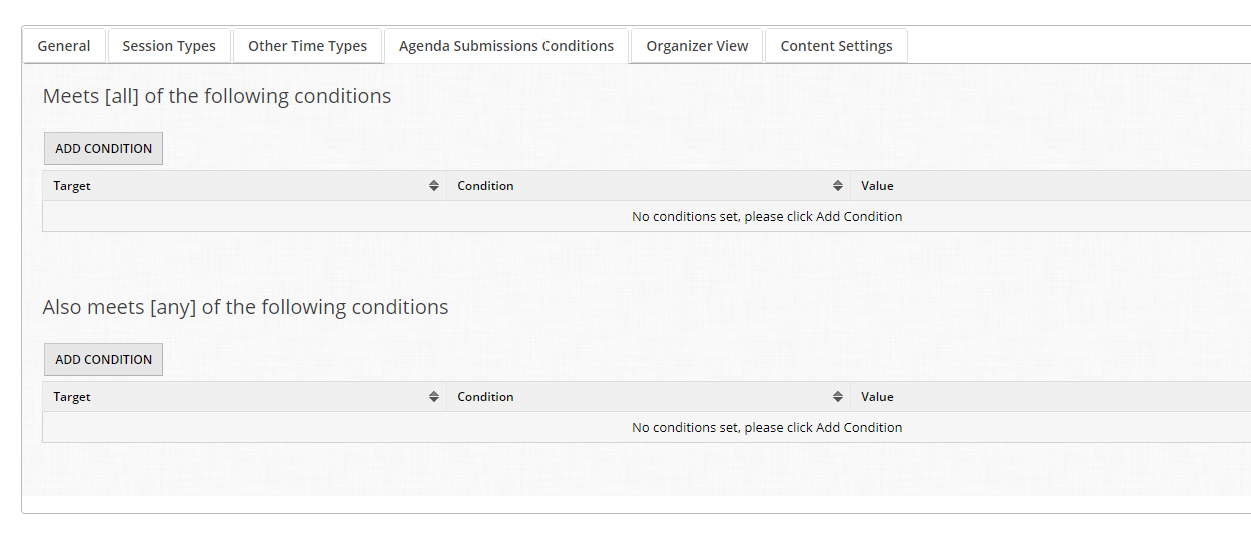
Agenda Conditions
This is blank because ASME allows session chairs pull abstracts into sessions for whom submitters have not yet even submitted their paper yet. Perhaps they are expecting they will.
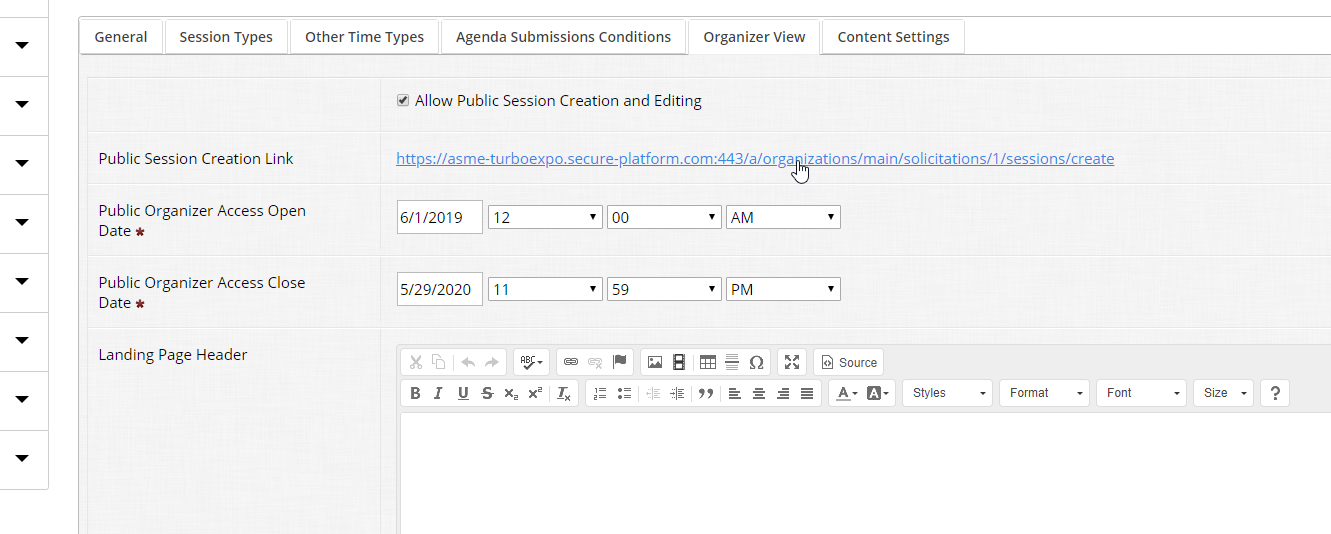
Organizer View
Allow public session creating is turned on, but may not be used. This would allow session chairs create their own sessions, but it would also leave it wide open to be able to pull items from anywhere, instead of just those that would be eligible to their session.
Add and Assign Sessions
Add Session
With session settings configured, go back to Sessions > Manage Sessions.
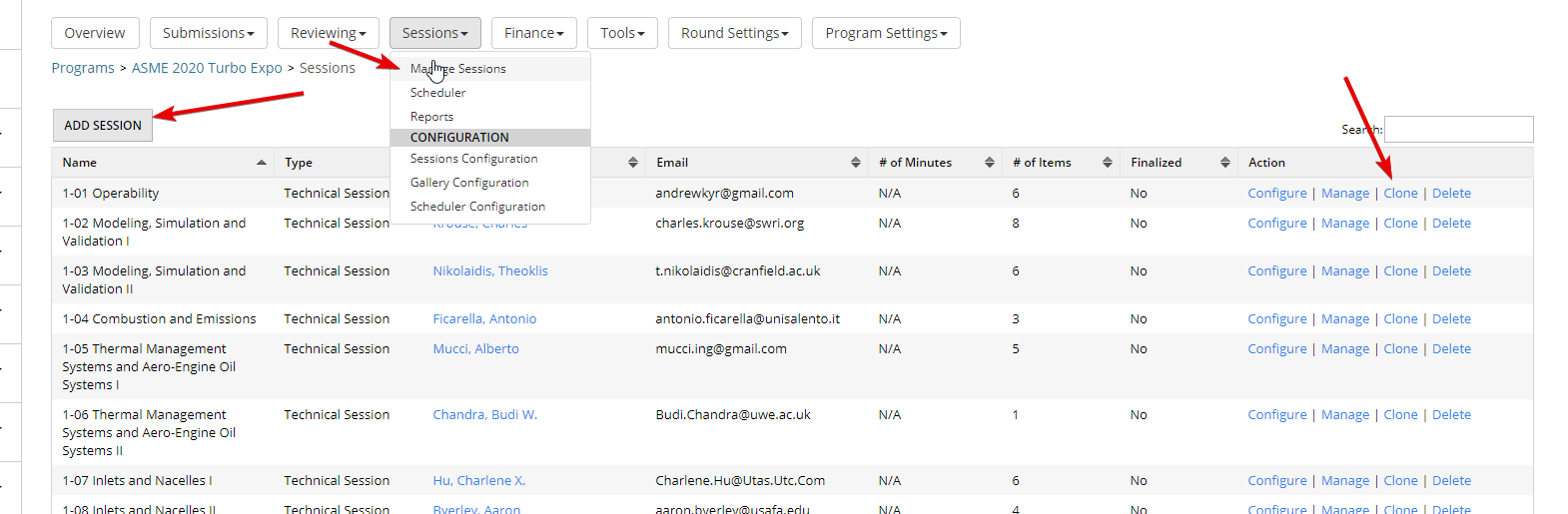
Click Add Session or clone an existing session.
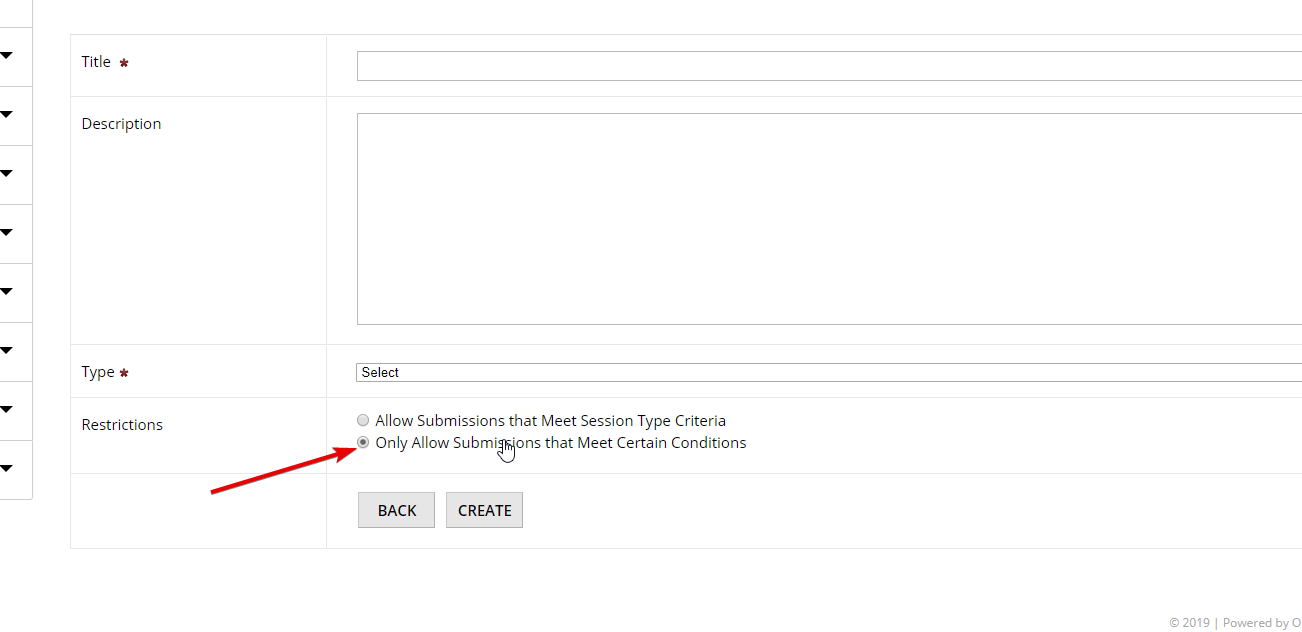
Create New Session
Most important here is to select ‘Only Allow Submissions that Meet Certain Conditions’ — this allows you to specify which abstracts a session chair can see when they are deciding what to place in their session.
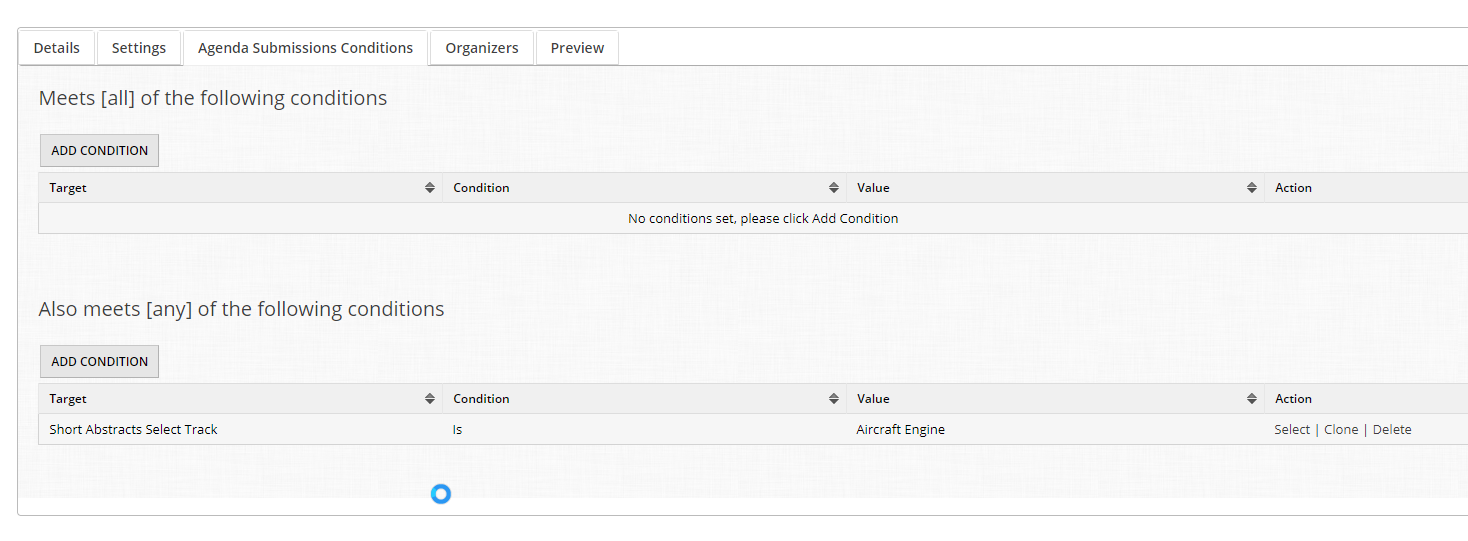
Set Conditions
Tab over to Agenda Conditions. For example, if this is an Aircraft Engine session, you can add a condition to only show from those that selected track = Aircraft Engine.
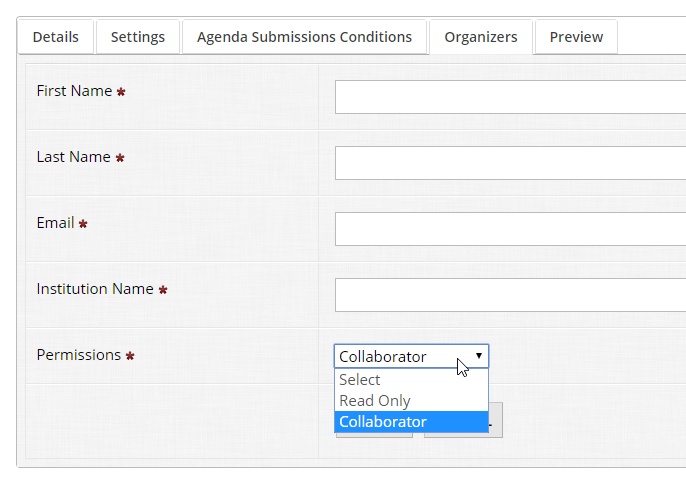
Add Organizers
Tab over to Organizers and add the Session Organizers who are responsible for managing this session. It might be the Track Organizer and some of the session organizers. You can add a session organizer as a collaborator or as read only. Collaborator means that they have the ability to edit and manage the submission, while read only means they can only view what has been added, but not take any further action.
Instructional Video
View the video below for a demonstration of the above steps for creating a new session.